
Before you begin restoring Microsoft 365 SharePoint data, ensure you have met the necessary requirements:
Requirements
The following account types are required:
- A user account for the Management Console at the following user level:
- SuperUser
- Administrator
- Manager
- Operator
- The Security Officer role assigned to the above user account
- A Global administrator account for Microsoft 365
Instructions
- Sign in to the Management Console using a SuperUser or Manager account with Security Officer permissions
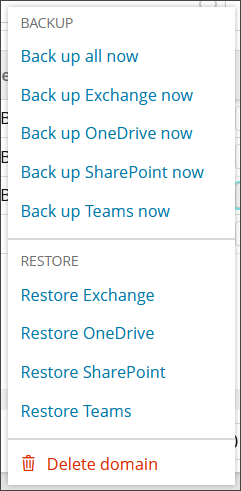
- Open the action menu for the domain and click Restore SharePoint
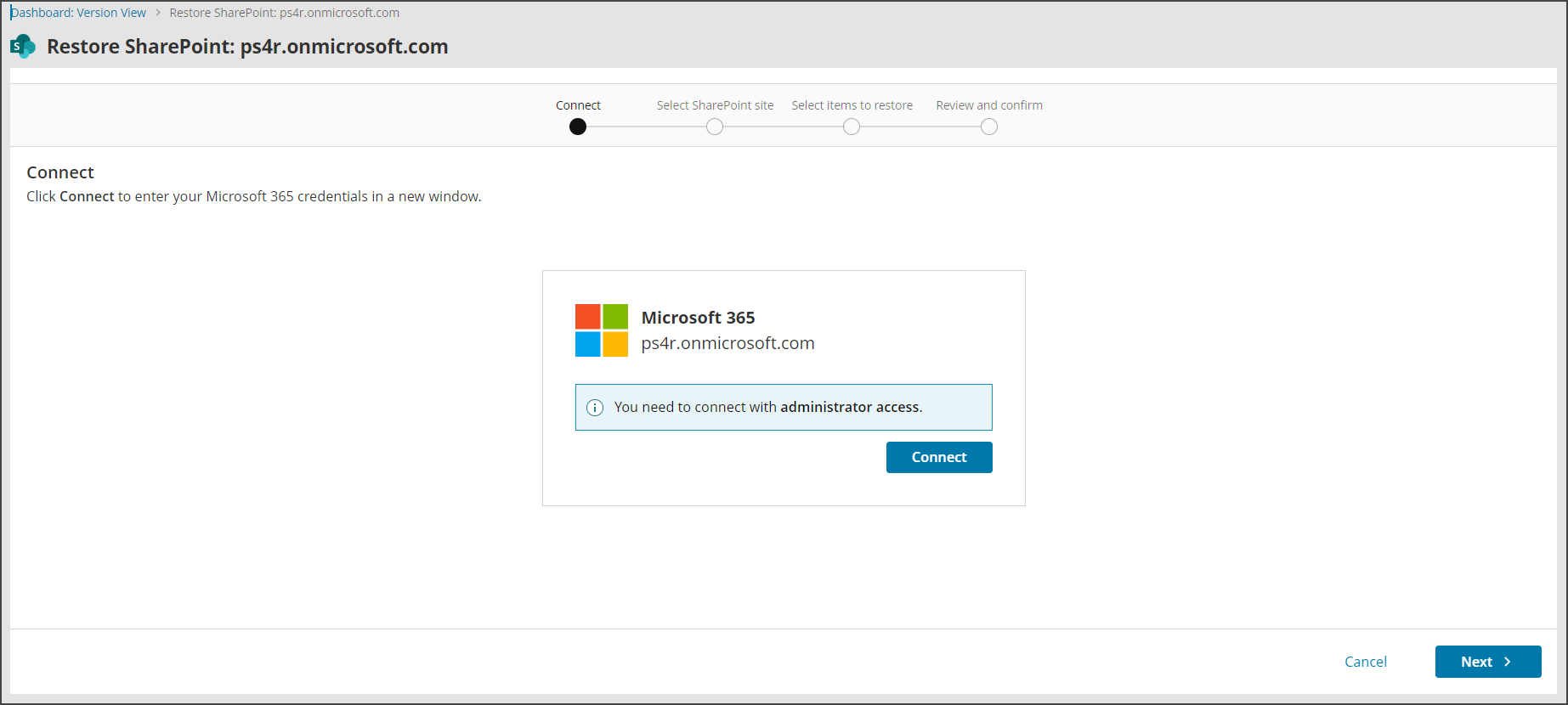
- Connect to the Microsoft 365 SharePoint account with administrative account credentials
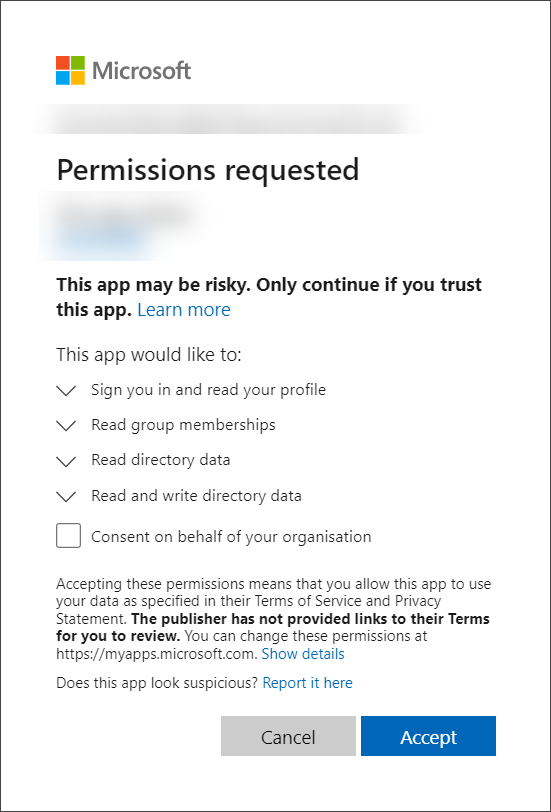
- Accept the required permissions
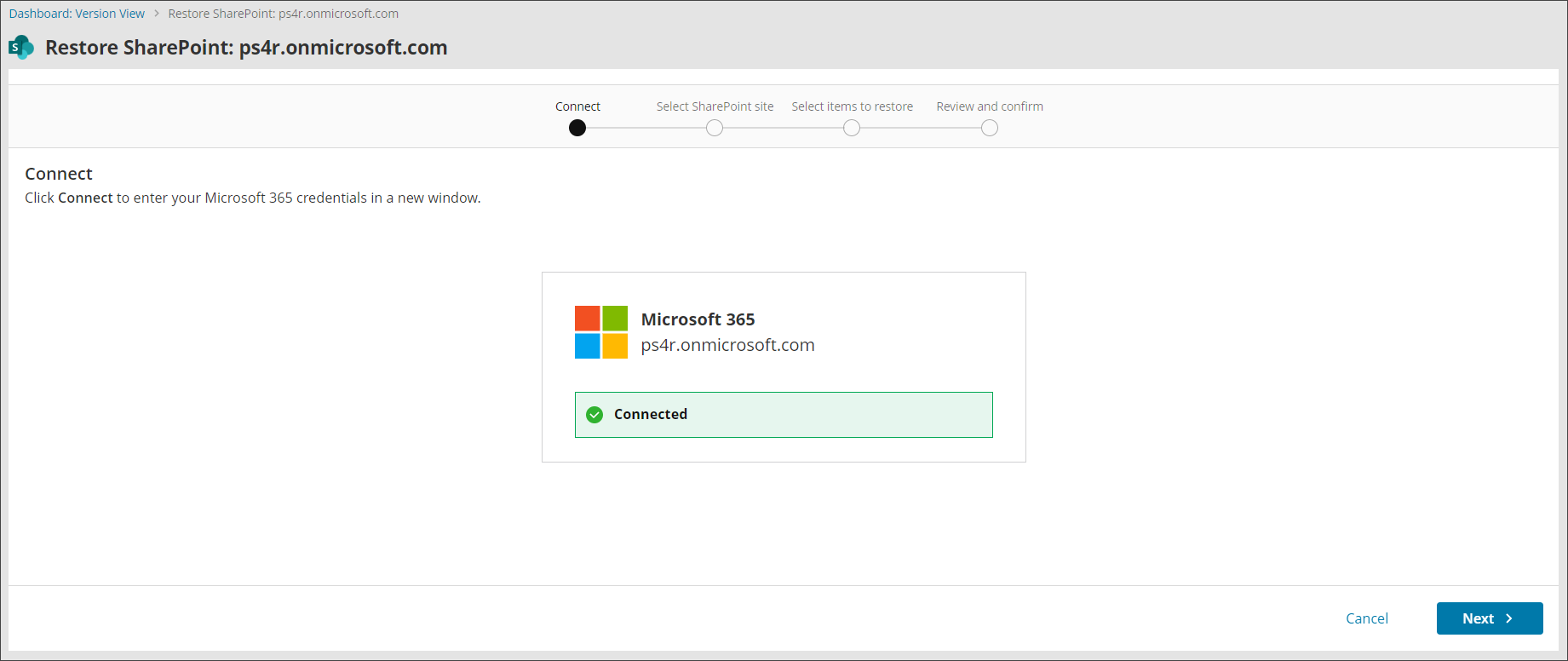
- You will receive a confirmation that the connection has been successful for the restore
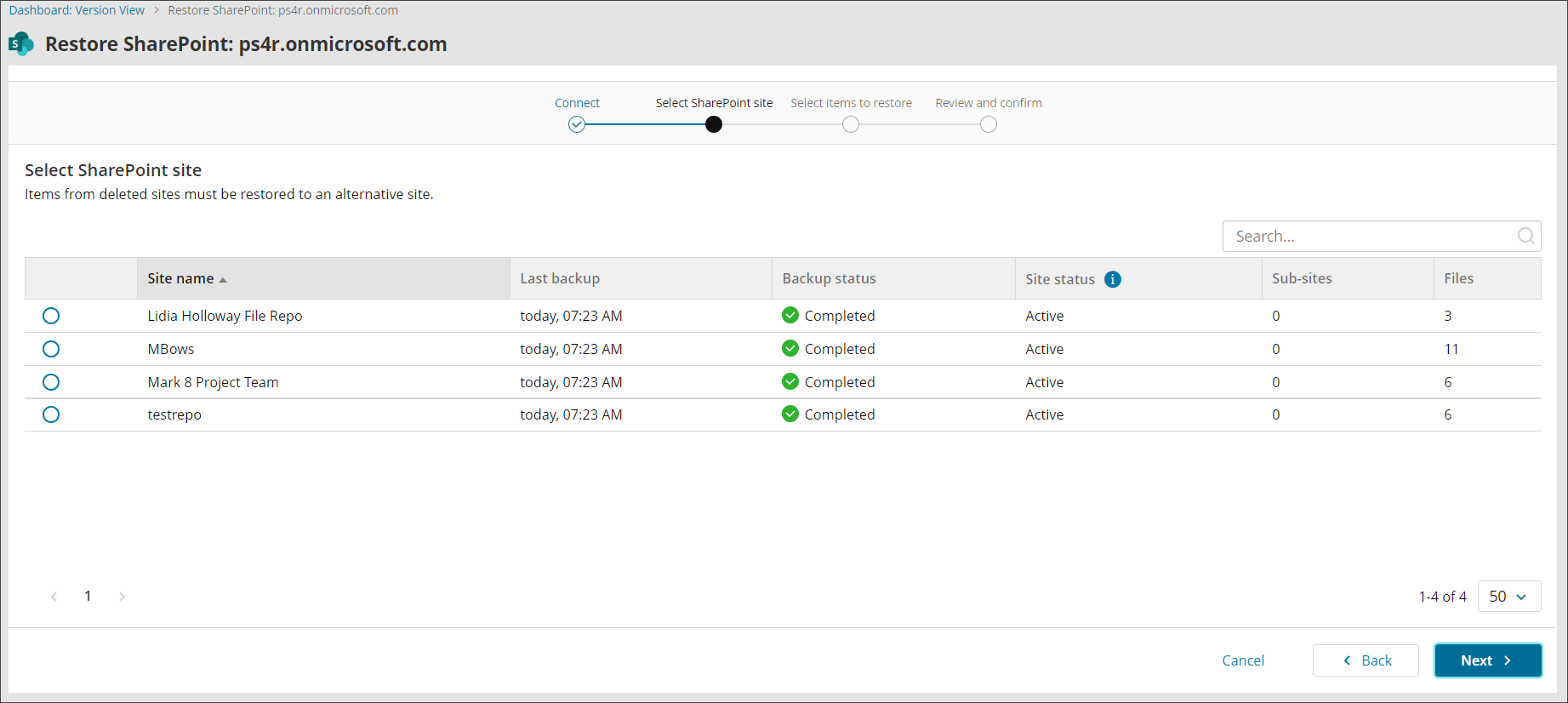
- Select the site you wish to restore from.
You will see the list of backed up sites, backup status of the site, the site status (Active or Deleted), number of Sub-sites and number of files.
- Select the backup date, backup session and then the items restore from the backup tree
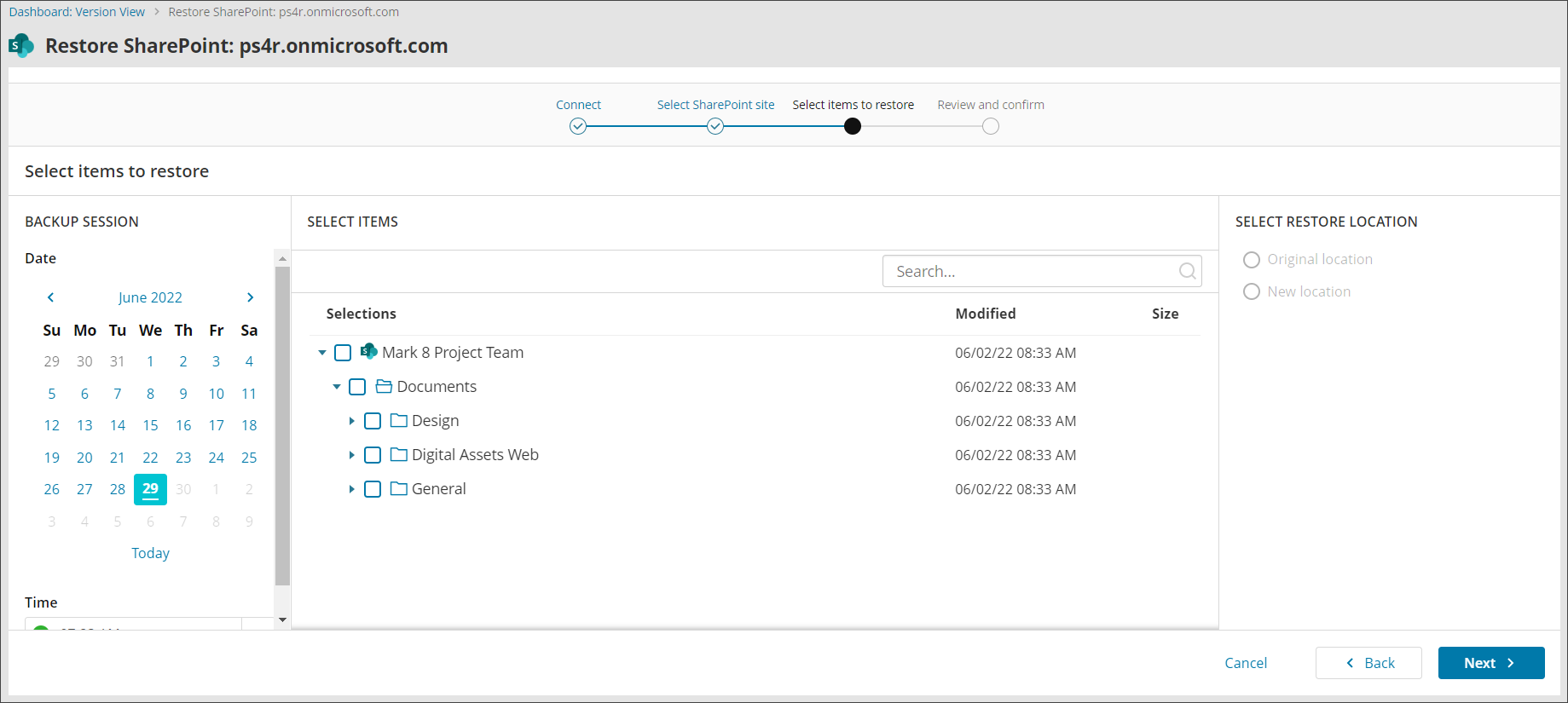
-
Select the restore location for items, which will be in a panel to the right or below the data selection
Regular Sites
- You can choose to restore to the Original Location
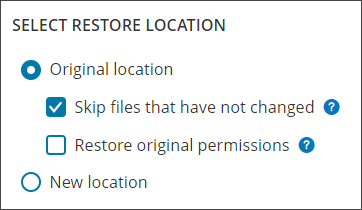
When restoring to the Original Location, you will also see an option to restore original permissions. You can find information on Microsoft 365 SharePoint Permissions here.
- Or a New Location which you will be required to select from a list of locations.
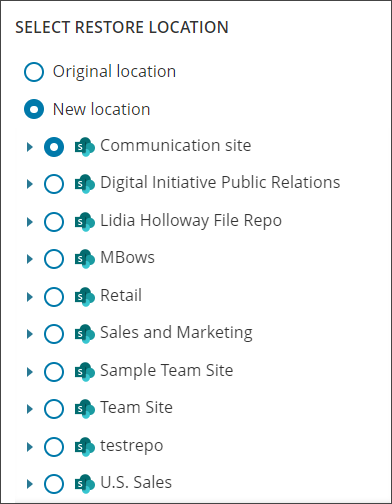
Deleted Sites
- For deleted site collections, you will only have the option to restore to a New Location
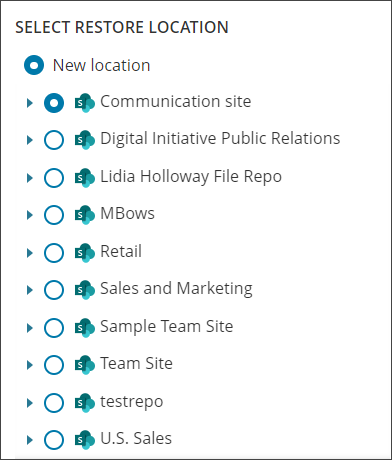
- You can choose to restore to the Original Location
- Confirm your intention to start the recovery and close the wizard
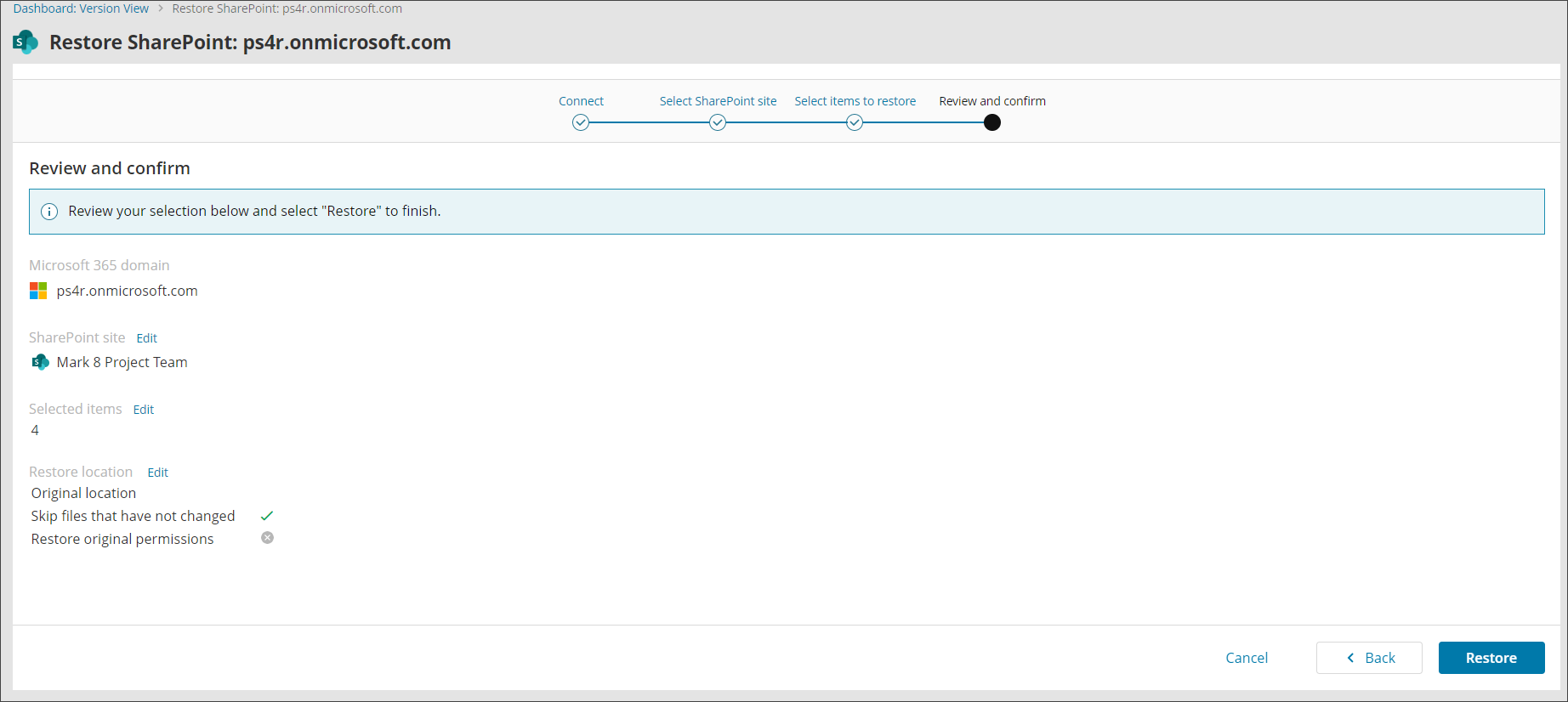
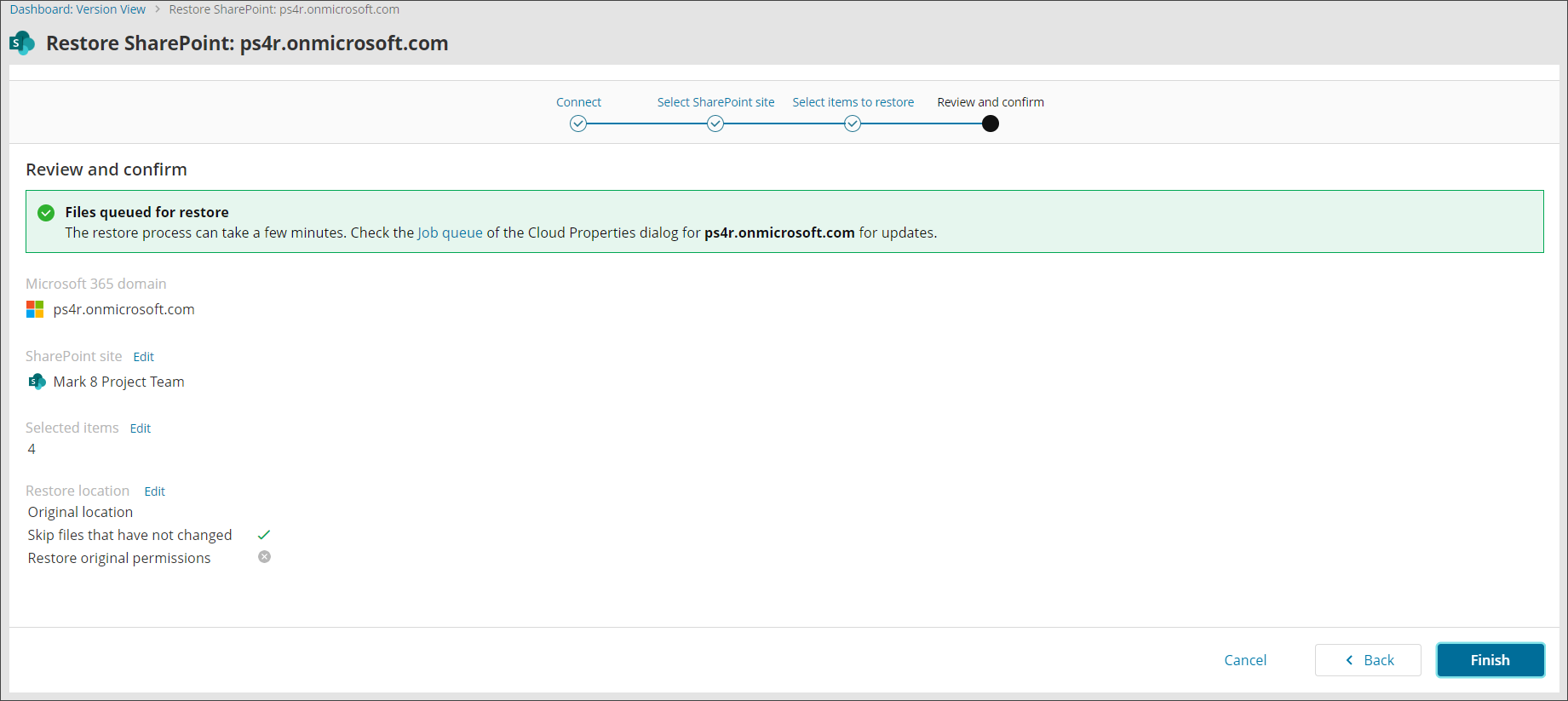
If you do not see the authentication page, make sure your browser is not blocking pop-up windows.
We cannot restore SharePoint site collection. In cases where site collection has been deleted, you will need to recreate this manually.