
Group-based data protection uses your existing Microsoft Entra ID security groups to automate backup policy assignment. To protect subsets of your Microsoft 365 tenants, apply your backup policies to Entra ID security groups instead of selecting individual users. This approach simplifies backup management, speeds up the onboarding of new users, and ensures consistent backup coverage to help maintain compliance.
Supported user roles
- Setting up group-based data protection requires a Super User or Manager account.
- A Global Administrator account for Microsoft 365 is a prerequisite for connecting to the Microsoft 365 domain.
Set up group-based data protection
To set up group-based data protection:
- Connect to the Microsoft 365 domain you want to protect, as described in steps 1 to 7 in the page Enable Microsoft 365 Backups.
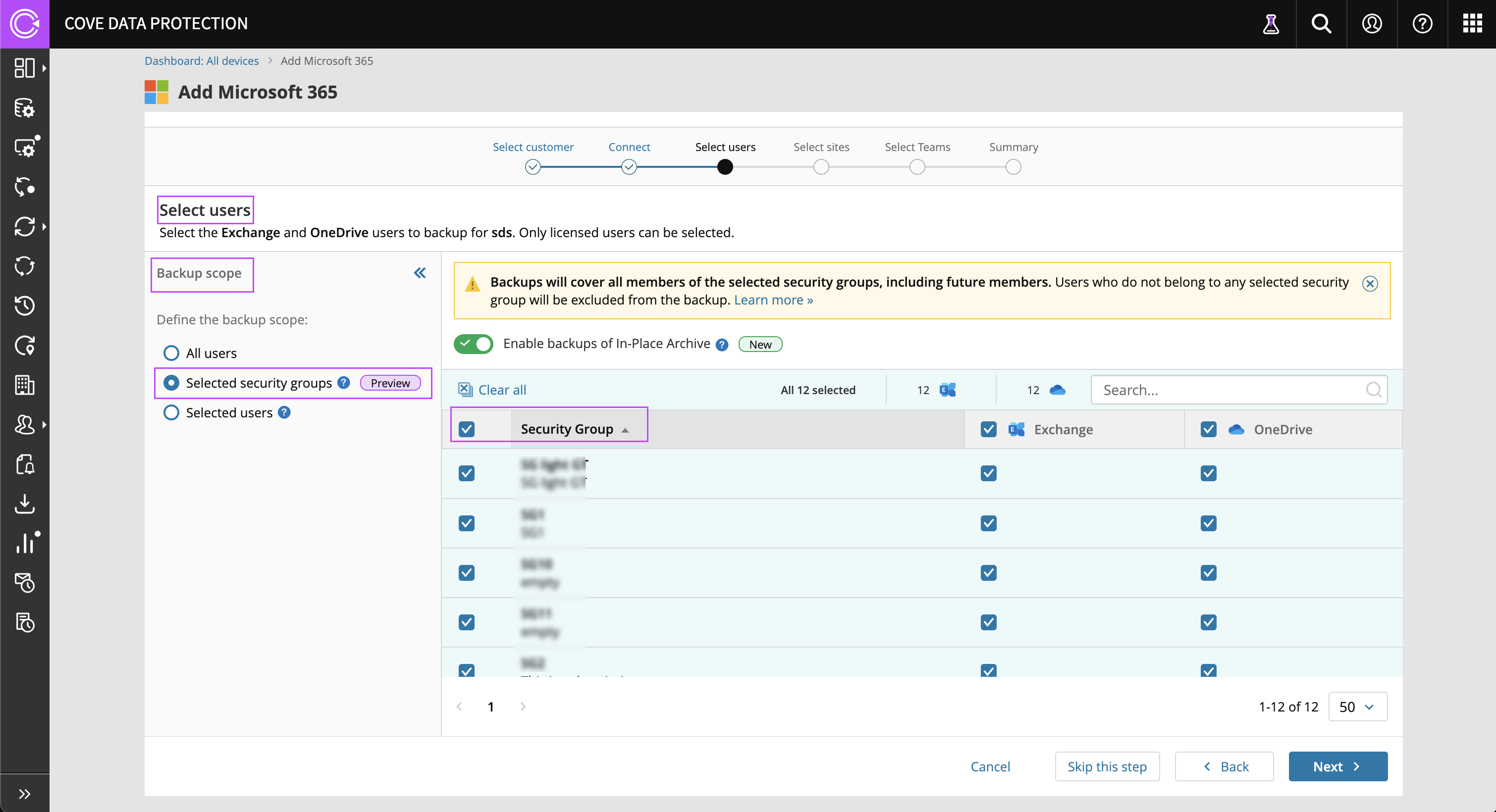
- In the Select Users page, choose Selected Security Groups under Backup Scope. The security groups for the tenant are displayed. Select the security groups you want to protect, and then select Next.
- Optionally, select the sites you want to protect, and then select Next.
- Optionally, select the Teams you want to protect, and then select Next.
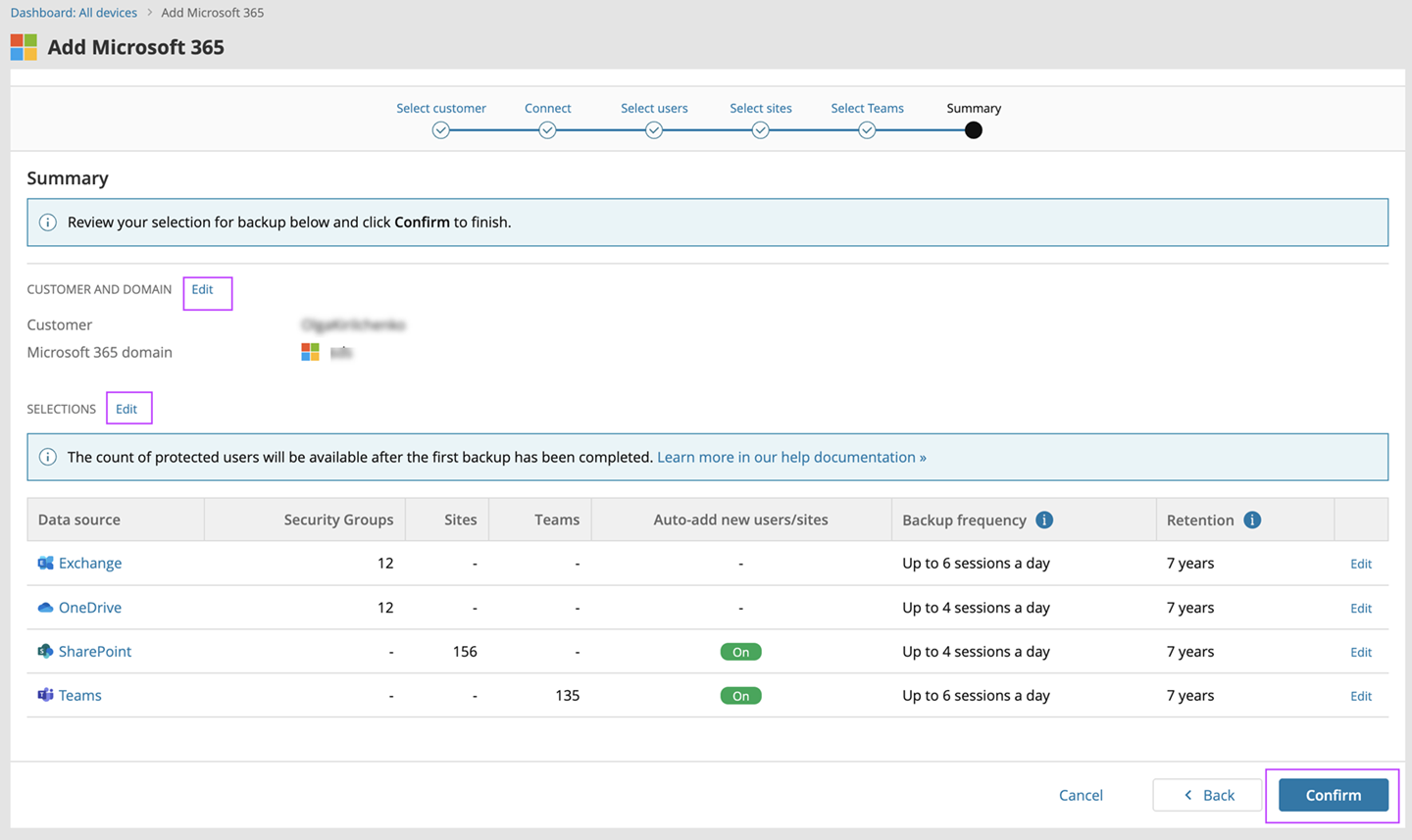
The Summary page opens. The count of the selected security groups, the customer and domain information is displayed.
- Review your group selections, and do one of the following:
- Select Edit to change your selections.
- Select Confirm to complete.
A confirmation message appears. Your selections have been successfully added to the backup schedule.
Backups include all current and future members of the selected security groups.
Manage group-based data protection
You can manage the security groups you added from the Exchange & OneDrive tab.
- Sign in to the Management Console using a SuperUser or Manager account
- Navigate to the Microsoft 365 backups dashboard.
- Under the Exchange & OneDrive tab, go to the Groups tab. The count of the protected security groups is displayed.
- Select or deselect the security groups you want to protect. If you are switching from an individual users backup approach (Users tab) to a group-based approach (Groups tab) you are prompted to confirm your choice.
- If you had selected individual users for your backup scope, the Users tab opens by default.
- If you had selected security groups for backup, the Groups tab opens by default.
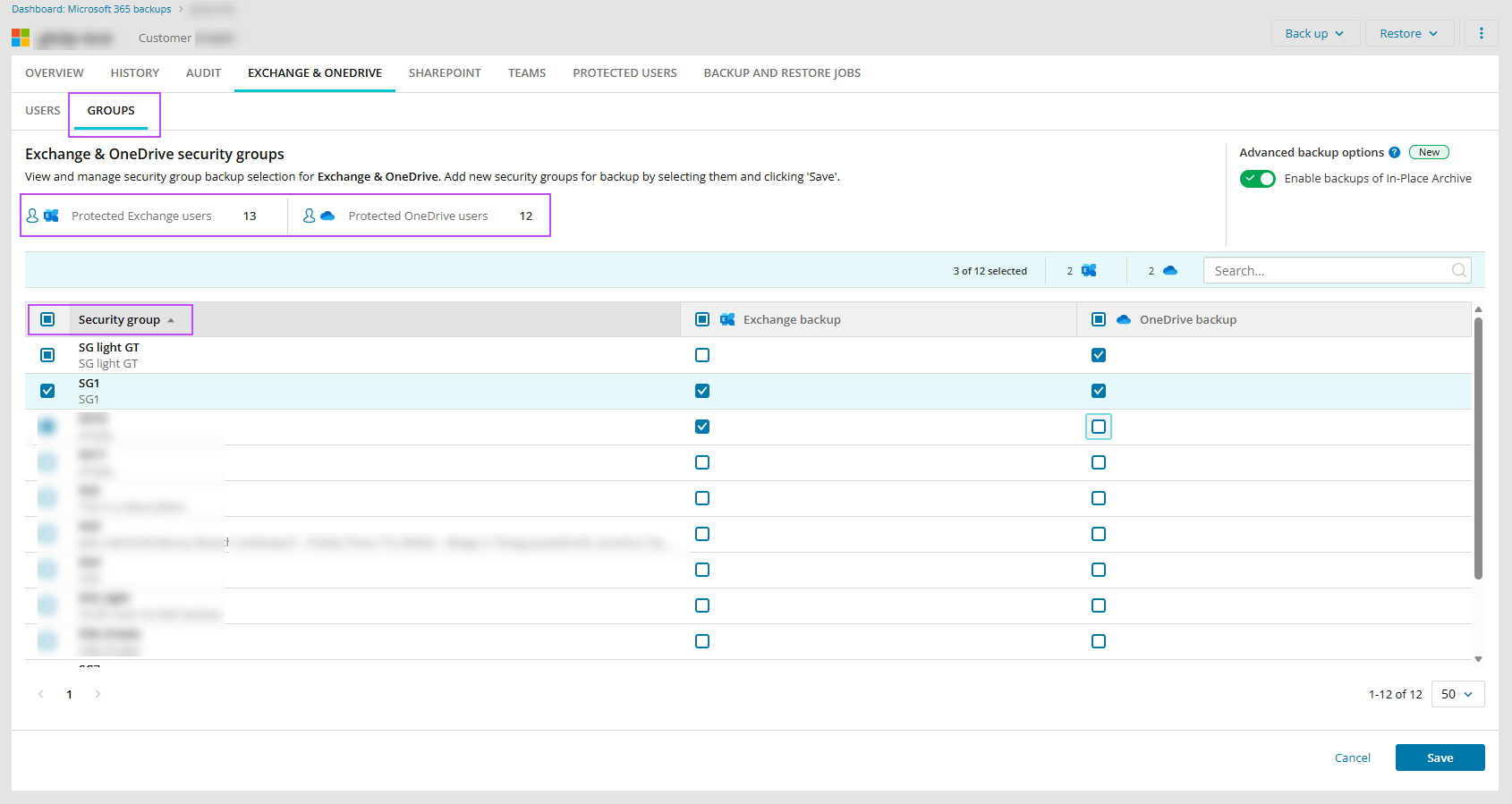
- Select Save. You are prompted to confirm your changes to the backup scope.
- Select Confirm to complete. The selected security groups are now included in the backup scope.
- All current and future members of the selected security groups will be backed up.
- Switching from users to group-based data protection clears all previous user selections for backup. Likewise, switching from security groups to individual users will clear the current group selections.
- This change to backup scope may affect your billing. Users in deselected security groups remain billable unless you remove all associated backup history.
When no users or security groups are chosen for backup, the system displays a prompt to select them.