
Before beginning an export of Microsoft 365 Exchange mailbox data, ensure you have confirmed access permissions.
- Sign in to the Management Console using a SuperUser or Manager account with Security Officer permissions.
- Open the Microsoft 365 BackupsDashboard.
- Select the Customer to view the associated Microsoft 365 tenants.
- The Export Exchange to .pst option is available from multiple locations:
- Right-click the device name, and select Export Exchange to .pst.
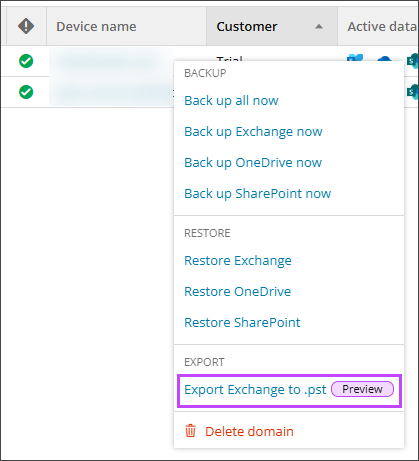
- From the Action menu, select Export Exchange to .pst.
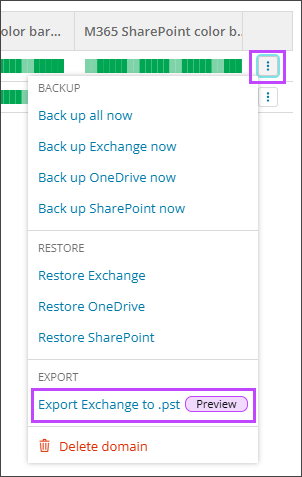
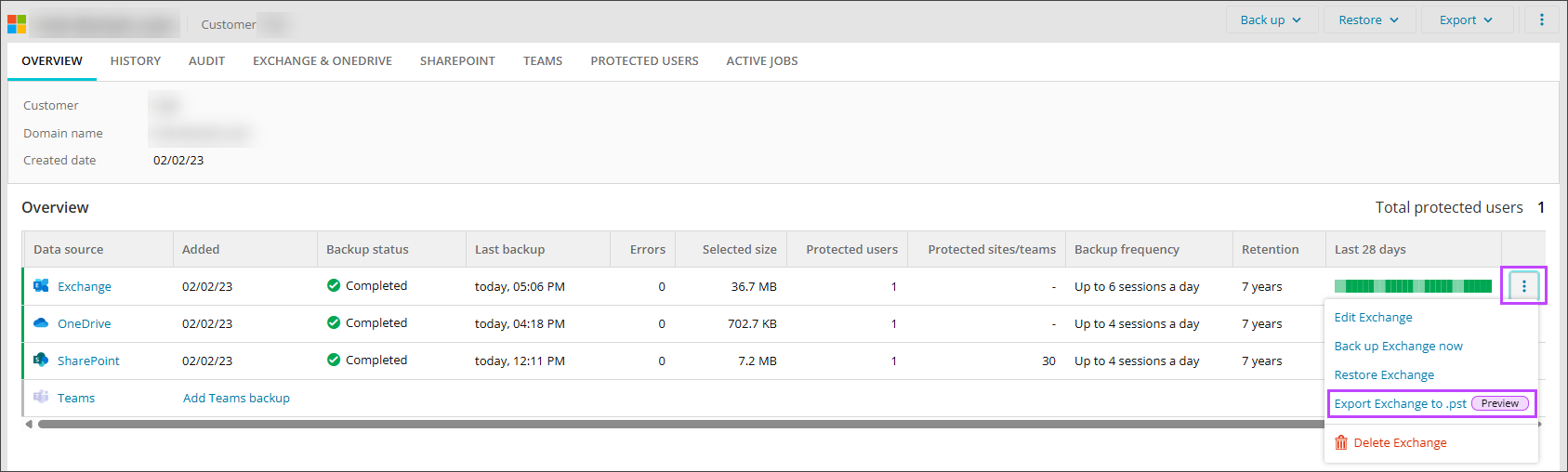
- Open the device properties by selecting the device from the list. From here, you can find the Export Exchange to .pst option in one of the following locations:
- Using the Export dropdown in the upper-right corner.

- The Action menu in the Overview tab.
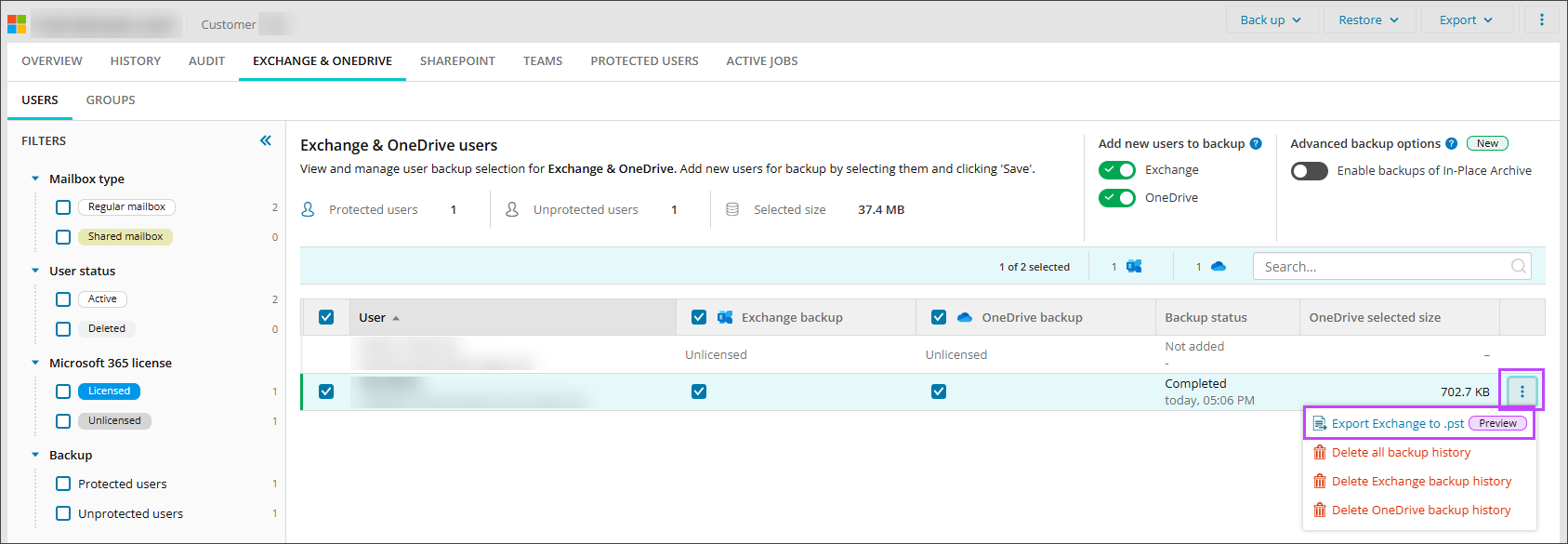
- The Action menu for a user in the Exchange & OneDrive tab (with Exchange selected). In this view, the user’s mailbox is already selected.
- Right-click the device name, and select Export Exchange to .pst.
- Select the user’s mailbox to export, and then select Next.
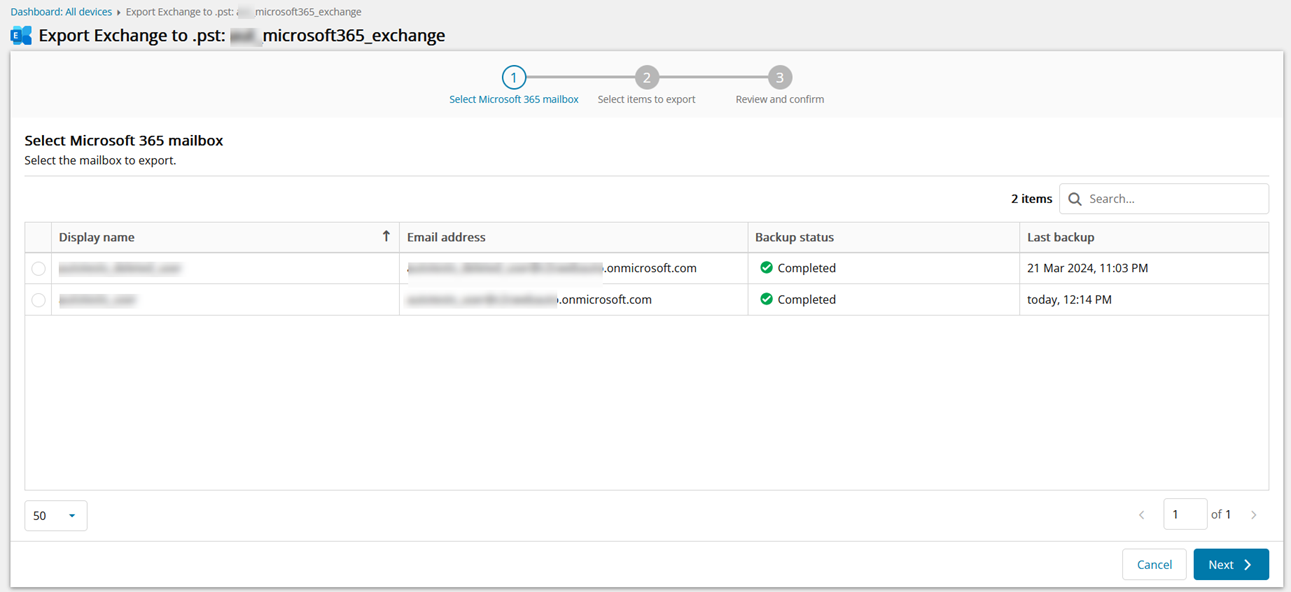
This step will be skipped if you have entered the export via the Exchange & Onedrive tab
- Choose the Exchange data to include in the export, and then select Next.
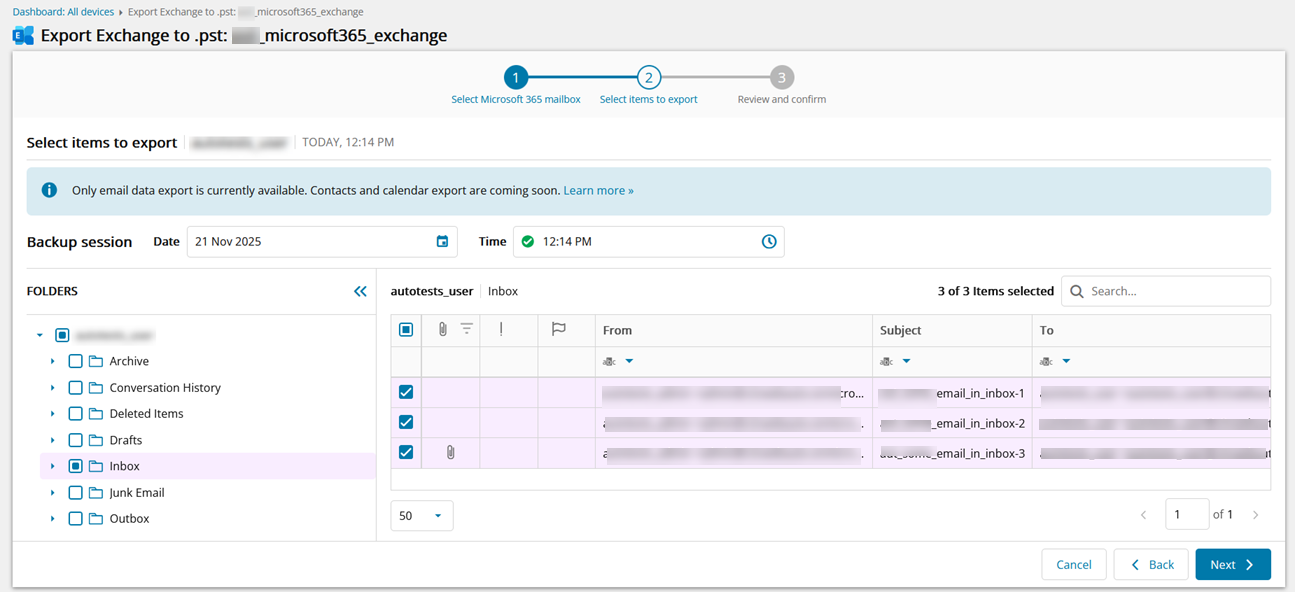
- Click Next to review data selection and begin exporting the selected data.
From this window, you may return to the Microsoft 365 mailbox selection or the data to export selection by clicking Edit beside either of these in the confirmation window.
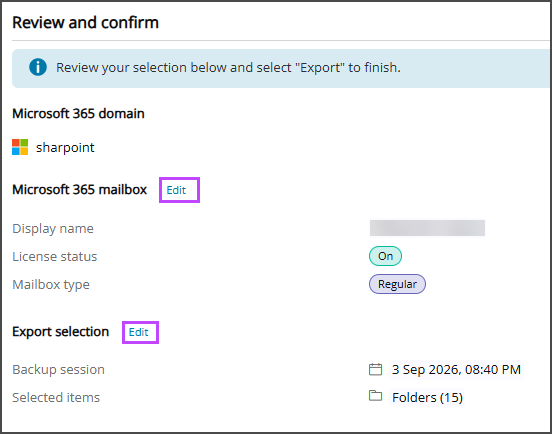
- Click Export to begin the creation of the .pst file.
The .pst file creation will begin immediately
- Select Finish to close the Export wizard and navigate to the Device Properties > Active Jobs tab
The .pst file will not automatically download to your device once complete. You must download this manually once file creation is complete.