
Cove Data Protection (Cove)'s Documents Backup is a purpose-built data protection solution for Windows and macOS workstations and laptops. It provides highly automated data protection of key office files (every Word doc, spreadsheet, presentation, text file, .pdf, .csv) at a price point similar to antivirus software.
Managed Installation vs. Self-Managed Installation vs Documents Installation
Three installation methods available are:
- Managed Installation – Previously known as Automatic Deployment or Quick Installation, this method lets you install Backup Manager on multiple devices simultaneously
This is a silent installation process
- Self-Managed Installation - Previously known as Manual or Legacy Installation, this method lets you install one device at a time with manual configuration
This installation process requires additional input on each device
- Documents Installation – this method lets you install Documents backup on multiple Windows and macOS workstations and laptops simultaneously for the protection of key office files only
This is a silent installation process
Please see the table below for the differences between these options.
| Managed Installation | Self-Managed Installation | Documents Installation | |
|---|---|---|---|
| Supported versions | All Windows, macOS and Linux on which Backup Manager works (full list) | All Windows, macOS and Linux on which Backup Manager works (full list) | Windows and macOS workstations and laptops |
| Feature availability | Resellers and End Customers only | Resellers and End Customers only | All types of customers |
| Number of installations | Multiple devices simultaneously |
Multiple devices simultaneously if no Device Name is set when adding. One device at a time if a Device Name is set when adding. |
Multiple devices simultaneously |
| Details required for installation |
Installation file (generated automatically) |
|
Installation file (generated automatically) |
We do not store the Encryption Key/Security Code or Passphrase of any device installed using Self-Managed Installation, this must be kept by yourself as it cannot be retrieved in our system if lost.
How it works
There is just one data source for backup and recovery – Files & Folders (not named explicitly in the user interface). All local drives on the device are scanned for eligible files which are detected automatically by the system.
See the full list of supported file types and the list of exclusions.
The Documents backups start right after installation completes and are repeated twice a day:
- At night between 9 pm and 6 am
- At lunchtime between 12 noon and 2 pm
As no backup settings are available, the Preferences tab on Backup Manager is hidden. Also it is not possible to change the backup settings through remote commands.
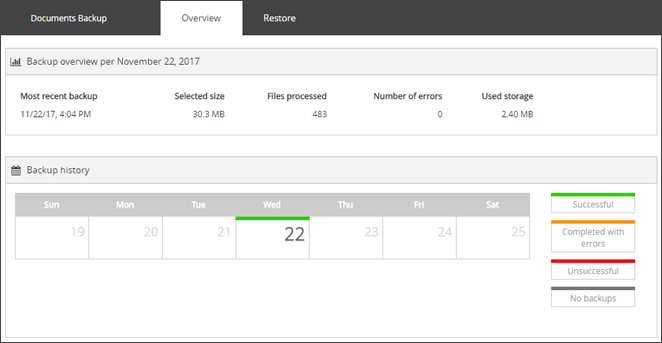
Documents devices are not associated with any email addresses. Therefore it is not possible to set up the delivery of email dashboards on the statuses of recent backup and recovery activities for these devices.
Benefits
- Installation is done in a click
- Backups run twice a day without user interference
- All backup settings are predefined and cannot be changed
- Users can recover selected files and folders at any time
- There is no limit to the size or number of files that can be backed up
Requirements
- Documents is available to the following types of customers: Resellers and End Customers
- A SuperUser account is required to activate the installation
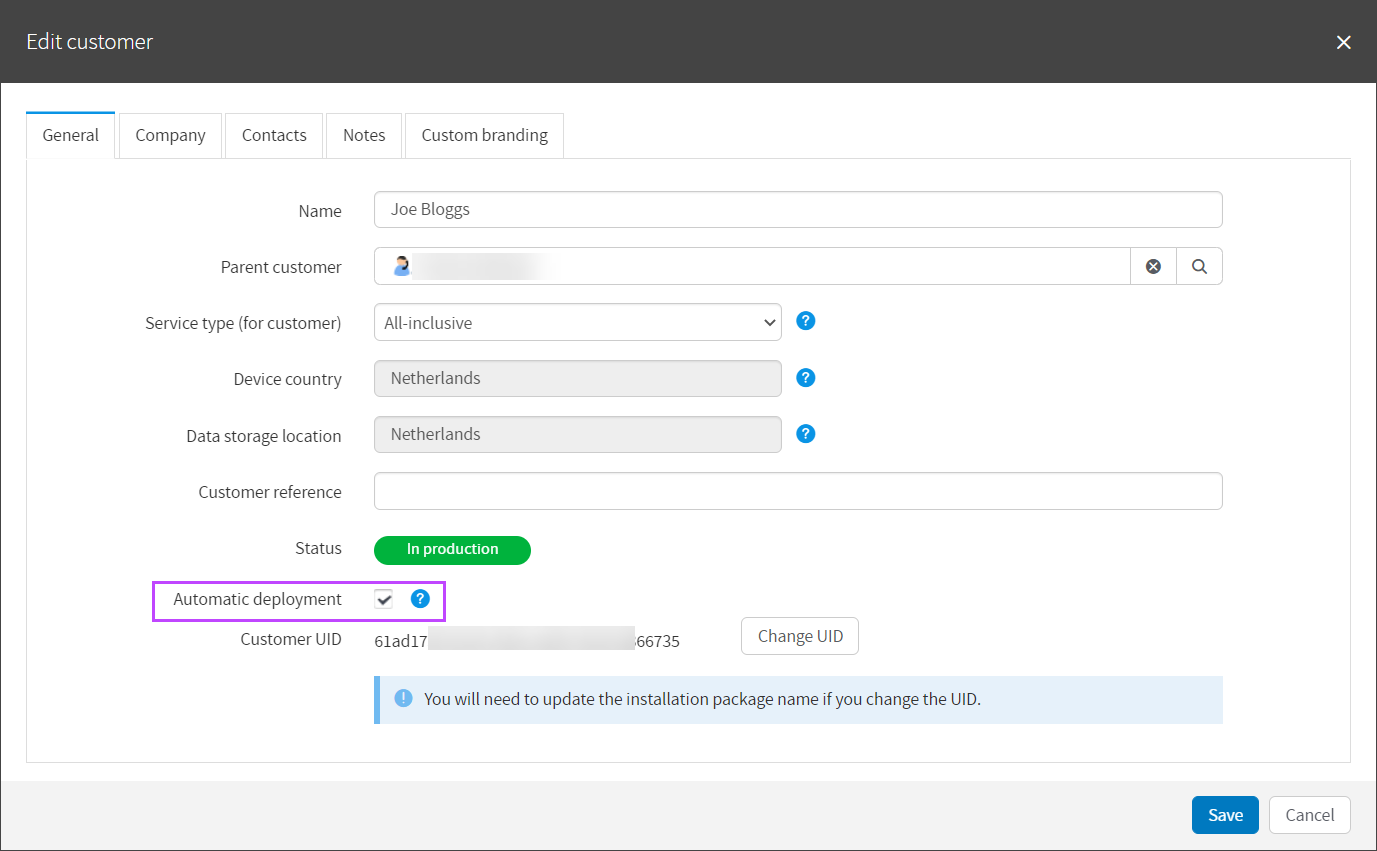
- If the system has Microsoft OneDrive installed, the Files On-Demand feature must be disabled.
When this feature is on, the contents of the directory are not physically available on the hard drive. This makes them inaccessible for backup. See More about "Files On-Demand".
Limitations
- Documents Backup is for the client versions of Windows and macOS only. If the installation is performed on a Linux machine or a Windows server, it will not be functional and backups will be blocked
- It is not possible to switch a regular Backup Manager installation to Documents
Upgrading options
For more options and flexibility, you can upgrade any Documents device to the standard version.
- Sign in to the Management Console using a SuperUser account
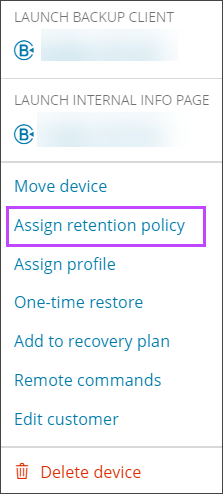
- Click the action menu icon to the right of the device you want to upgrade (three vertical dots)
- Select Assign Retention Policy
- Choose a new policy for the device
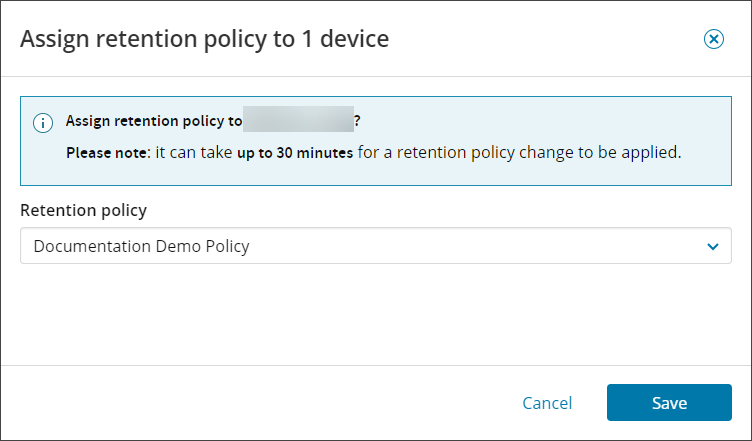
- Click Save to apply the changes
You may also apply a new policy to devices(s) by:
- Placing a tick in the check box of the device(s) you need to update
- Select Assign Retention Policy from the Toolbar
- Choose a new policy for the device
- Click Save to apply the changes

Alternatively, you may upgrade a device by changing its product selection from the Device Properties > Settings tab.
- Click on the device name to open its properties
- Go to the Settings tab
- Change the product selection to the Retention Policy required
Enhanced Device Properties:

Classic Device Properties:
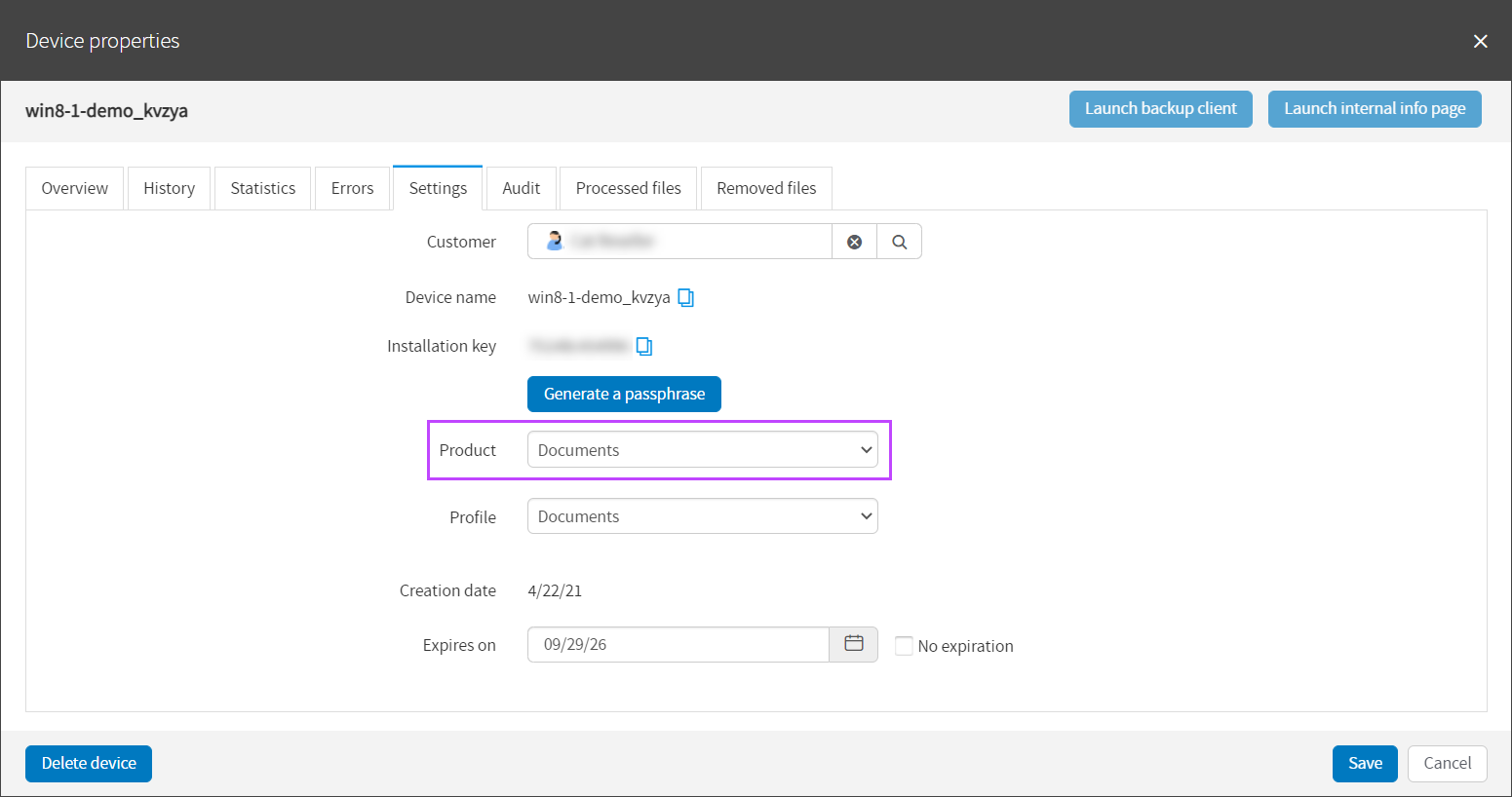
- Click Save before closing the Device Properties window
A standard Backup Manager device cannot be downgraded to Documents.
If the device is turned off, the backup cannot run. It will run when the device has been turned back on.