
Add your branding to Analytics reports
Upload a logo to include your company branding in exported Analytics reports.
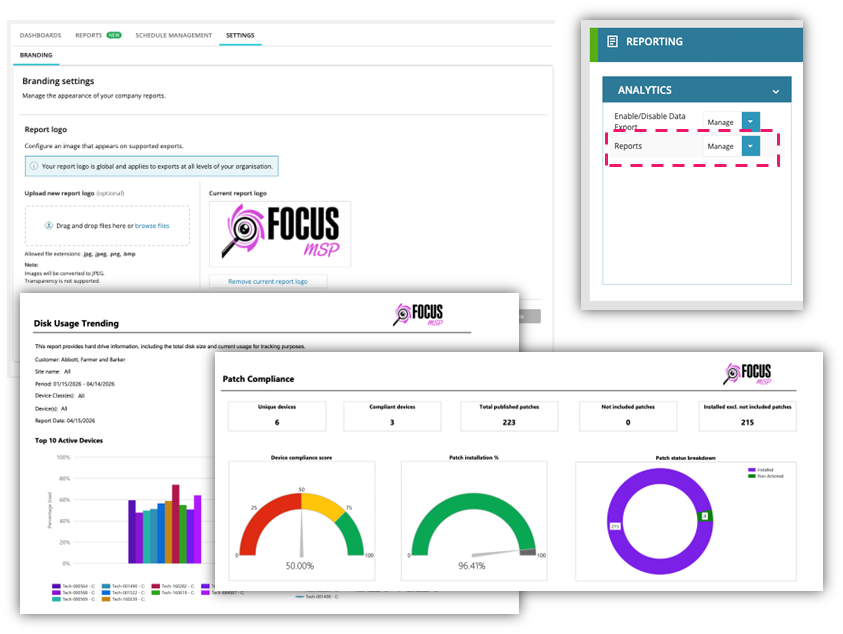
Where your logo appears
Your logo appears in:
-
The top-right corner of report pages
-
PDF exports
-
Excel exports
-
Generated and scheduled reports
Before you begin
-
Use N-central version 2026.2 or later
-
Ensure you have permission to manage Analytics report settings
-
-
Required permission: Analytics Reports – Manage
-
Apply one logo across the entire tenant
-
The same logo appears on all reports, including scheduled reports
-
You cannot assign different logos per report or per customer
-
Prepare your logo
To ensure your logo displays correctly:
-
Use a supported format: JPG, JPEG, PNG, or BMP (the system converts all images to JPEG during upload)
-
Use a solid background (transparency is not supported)
-
Use a 9:4 aspect ratio
-
Keep the file size under 200 KB
-
The system reduces larger files to meet the size limit
-
To upload or change a report logo
-
Go to Analytics > Settings > Branding.
-
Under Report logo, select Upload a report logo.
-
Drag the file into the upload area, or select browse files and choose the file.
The system replaces the current logo with the new file.
To remove a report logo
-
Go to Analytics > Settings > Branding.
-
Under Current report logo, select Remove logo.
The system removes the logo from all exported reports.