Themes, display and contrast modes overview
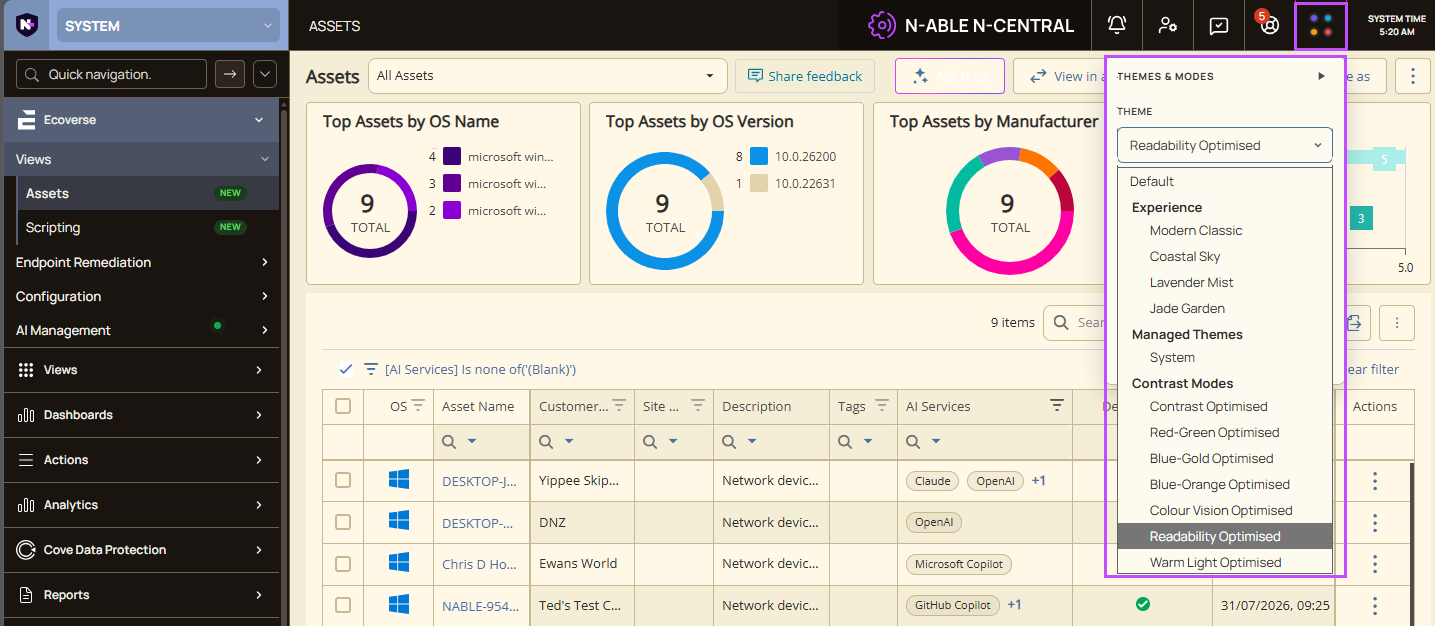
N-central includes personalization settings that let you change the appearance of the user interface. Use the Theme Settings button in the top menu to select a theme, switch between light and dark mode, and apply a contrast mode to improve readability, visibility, and viewing comfort.
Change appearance settings
-
Click the Theme Settings button in the top menu.
-
Select a theme.
-
Select a display mode, if available.
-
Optionally select a contrast mode.
Changes immediately take effect.
Available personalization options
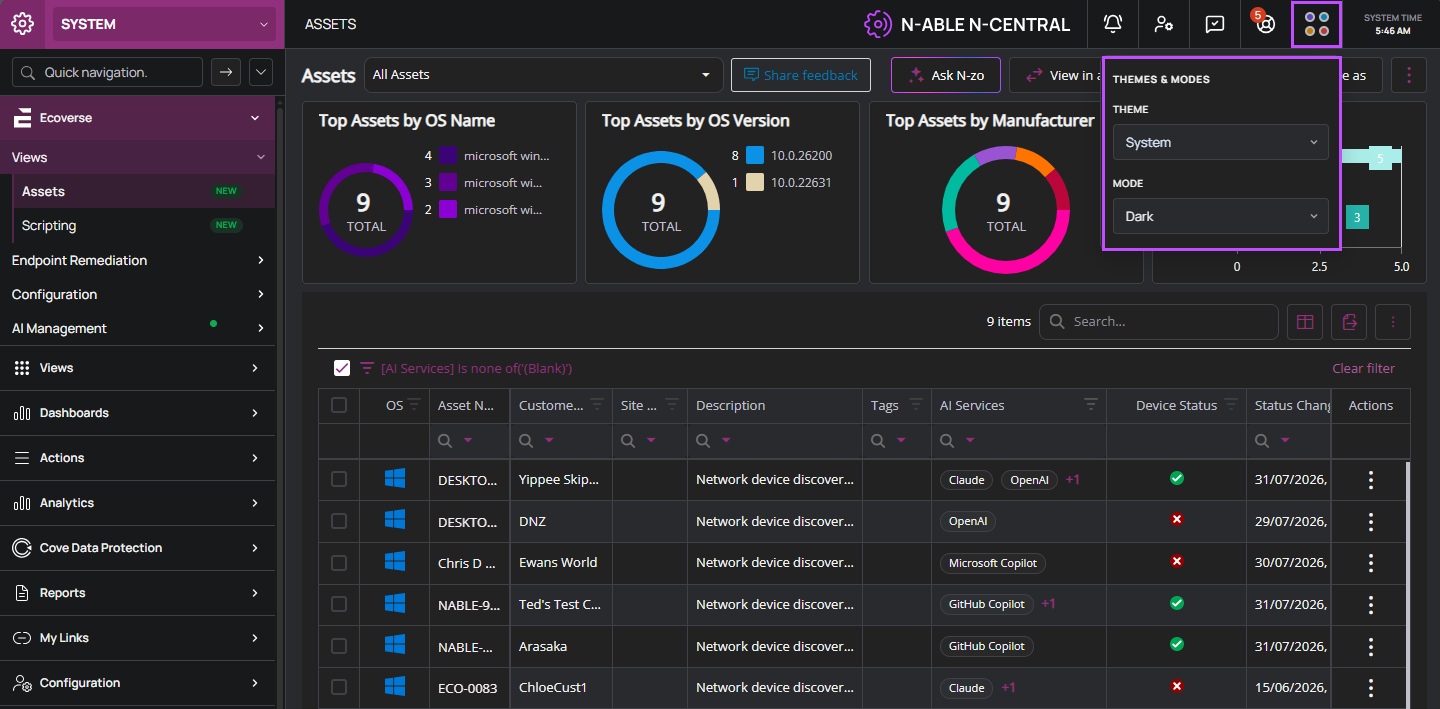
Theme
| Option | Description |
|---|---|
| Default | Uses the original N-central appearance. Light and dark mode are not available. |
| Modern Classic | Uses the modern N-central appearance. |
| Coastal Sky | Clean and professional appearance. |
| Lavender Mist | Modern appearance with bold accent colours. |
| Jade Garden | Green themed appearance. |
Mode
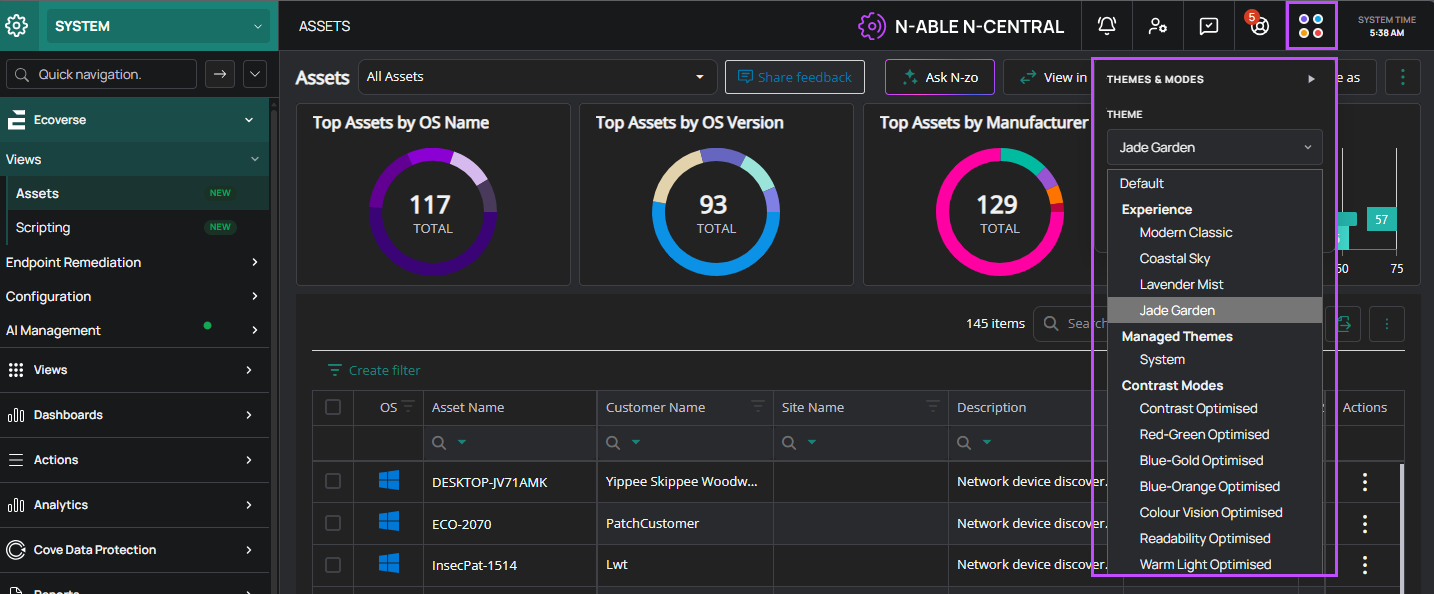
| Option | Description |
|---|---|
| Light | Uses a light background and dark text. |
| Dark | Uses a dark background and light text. |
Navigation style
| Option | Description |
|---|---|
| Light | Uses a light navigation menu. |
| Dark | Uses a dark navigation menu. |
Contrast options
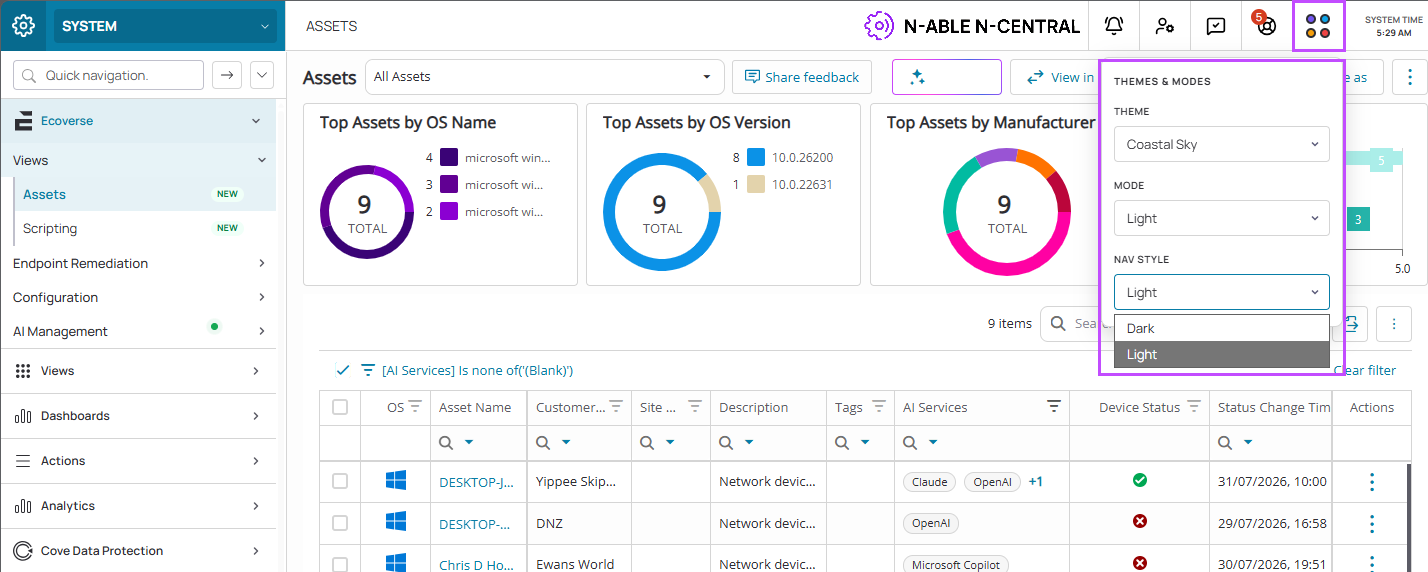
| Option | Description |
|---|---|
| Contrast Optimized | Increases contrast between interface elements. |
| Red-Green Optimized | Improves distinction between red and green colours. |
| Blue-Gold Optimized | Improves distinction between blue and yellow colours. |
| Blue-Orange Optimized | Improves distinction between blue and orange colours. |
| Color Vision Optimized | Reduces reliance on colour alone when presenting information. |
| Readability Optimized | Improves text readability. |
| Warm Light Optimized | Reduces blue light. |