
Integrate MSP Manager with Adlumin
The MSP Manager integration with Adlumin provides two‑way ticketing that gives your SOC better visibility, reduces manual work, and improves alert handling for your organization.
MSP Manager and Adlumin will automatically sync the following items:
- Tickets
- Comments
- Attachments
The maximum supported attachment payload is 30 MB.
This real-time sync keeps your organization and the SOC aligned and centralizes forensic evidence.
Configure MSP Manager for integration with Adlumin
There are three stages to set up the integration in MSP Manager:
- Create an API Key for Adlumin
- Configure the default queue used for integration tickets
- Set up webhooks so MSP Manager can receive ticket change notifications
Create an API Key for Adlumin
You need the Read data via Public API and Manage data via Public API permissions to create an API key. For details, see Configure permissions to access MSP Manager's API.
- Sign in to MSP Manager.
- Go to Settings > Company Settings > Integrations and select the Adlumin tile.
- On the API Keys tab, enter a meaningful name in API Key Name.
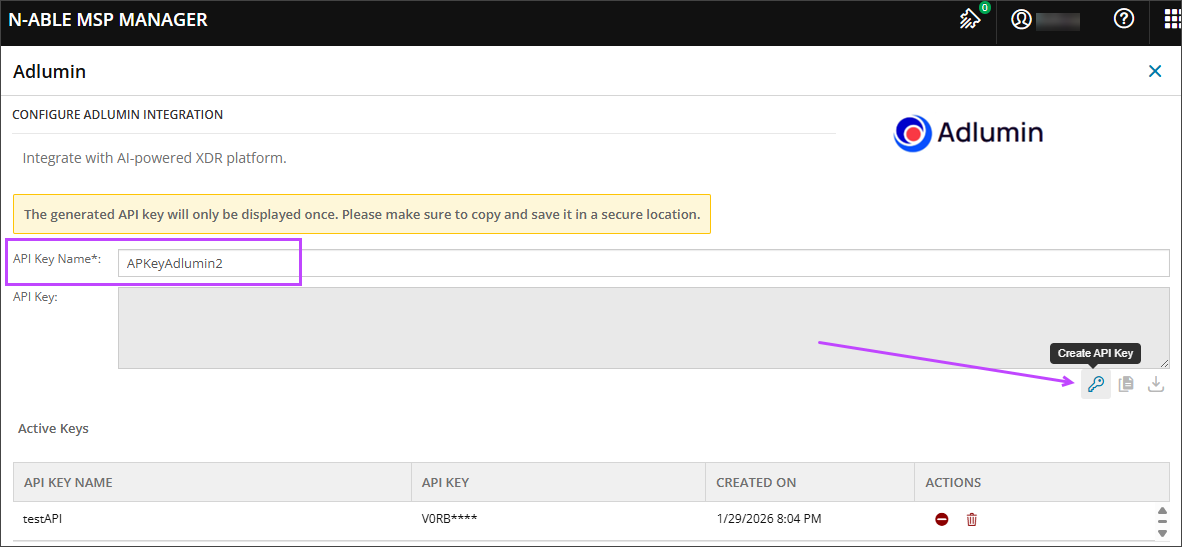
- Select Create API Key.
-
When the new API Key is displayed, select Copy API Key or
Download API Key, and save it in a secure location.
MSP Manager shows the API Key only once. Save it in a secure location.
- Close the page to return to the Integrations page.
Configure the default queue used for integration tickets
- Go to Settings > Company Settings > Integrations and select the Adlumin tile.
- On the Ticket Settings tab, select a Default queue.
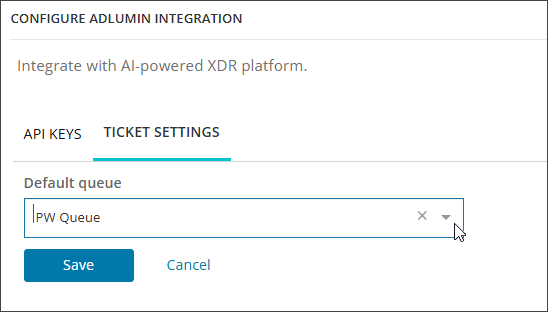
- Select Save.
Result: Tickets created in Adluminare added to the selected MSP Manager queue.
Set up webhooks so MSP Manager can receive ticket change notifications
- On the Integrations page, choose the Webhooks tile.
-
Select Add.
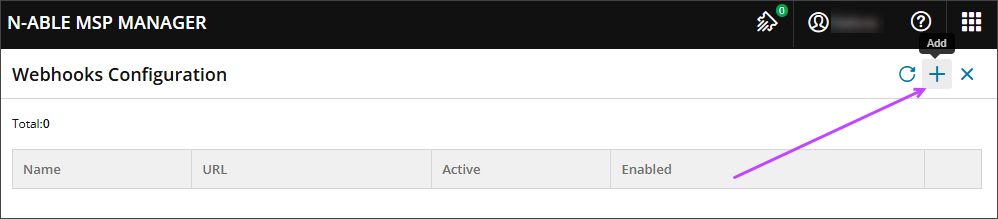
-
Enter a Name and set the URL to:
https://tih266u1mk.execute-api.us-west-2.amazonaws.com/prod/tickets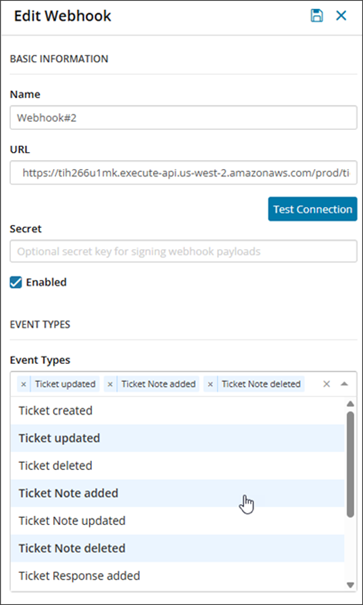
- Select Test Connection. The connection must succeed before you can save the webhook.
- (Optional) Create a shared Secret value that both systems use to confirm that webhook requests are legitimate and unchanged.
- Confirm that the Enabled checkbox is selected for the webhook. If you want to enable it later, clear the checkbox.
-
Select the Event Types you want to share with Adlumin.
For event type details, see Webhook events in MSP Manager.
Adlumin does not consume the following webhook event types: Ticket created, Ticket deleted, or any Ticket Response events.
- Select Save.
Example webhook payload
{
"webhookEventId": "a1b2c3d4-e5f6-7890-abcd-ef1234567890",
"webhookEvent": "mspm:ticket.updated",
"companyId": "12345678-1234-1234-1234-123456789012",
"eventType": "ticket.updated",
"entityId": "87654321-4321-4321-4321-210987654321",
"entityType": "ticket",
"timestamp": "2026-02-03T14:30:00.000Z",
"ticketSourceType": "Manual",
"payload": {
 "TicketId": "87654321-4321-4321-4321-210987654321",
 "TicketNumber": 12345,
 "Title": "Network connectivity issue",
 "TicketStatusCode": 2,
 "TicketStatusCustomId": "550e8400-e29b-41d4-a716-446655440000",
 "Priority": 3,
 "CustomerId": "11111111-1111-1111-1111-111111111111",
 "ServiceItemId": "22222222-2222-2222-2222-222222222222",
 "ProjectId": "33333333-3333-3333-3333-333333333333",
 "LocationId": "44444444-4444-4444-4444-444444444444",
 "ContactId": "55555555-5555-5555-5555-555555555555",
 "CreationDate": "2026-02-01T10:00:00.000Z",
 "DueDate": "2026-02-05T17:00:00.000Z",
 "TicketSourceType": "Manual",
 "Details": "<p>Customer reported network connectivity issues. Router appears to be offline.</p><img src=\"data:image/png;base64,iVBORw0KGgoAAAANS...\" />",
 "AdditionalFields": [
 {
  "fieldKey": "AdluminTenantID",
  "fieldValue": "tenant-123"
 },
 {
  "fieldKey": "CustomField1",
  "fieldValue": "Value1"
 }
]
}
}
Configure Adlumin for integration with MSP Manager
Complete the MSP Manager configuration first before you configure Adlumin for each tenant you want to integrate.
There are five stages to set up the integration in Adlumin:
- Sign in and select the ticketing system to integrate
- Configure MSP Manager credentials in Adlumin
- Configure ticket settings and sync options
- Map statuses and priorities between Adlumin and MSP Manager
- Review and confirm Adlumin integration settings
Sign in and select the ticketing system to integrate
- Sign in to Adlumin.
-
Go to Tools > Ticketing integrations and select
N-able MSP Manager.
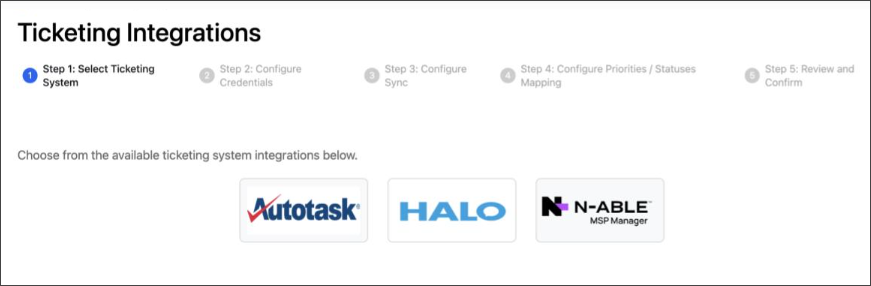
Configure MSP Manager credentials in Adlumin
- In the Configure Credentials step, enter the API key you created in MSP Manager.
https://api.mspmanager.com/adlumin- Select Next step.
Configure ticket settings and sync options
- Select the Customer you want to configure.
- Choose a ticket Issue type for the MSP Manager ticket.
- (Optional) Choose a ticket Sub-issue type.
- Select a Default priority. The system uses this if a priority is not mapped between Jira and MSP Manager.
-
Select Next step.
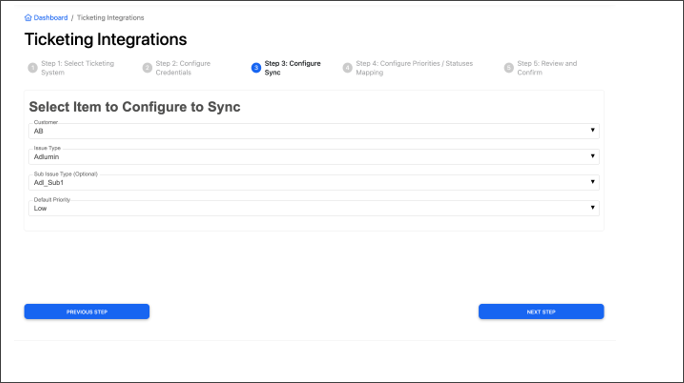
Map statuses and priorities between Adlumin and MSP Manager
- Map Jira statuses to MSP Manager statuses.
- Adlumin
supports two statuses:
- In Progress
- Closed
- Map all MSP Manager statuses to one of these two.
- Adlumin
supports two statuses:
- (Optional) Map Jira priorities to MSP Manager priorities.
- Adlumin
supports five statuses:
- Highest
- High
- Medium
- Low
- Lowest
- Map MSP Manager priorities as needed.
Mapping priorities is optional. Unmapped priorities use the default priority you selected earlier.
- Adlumin
supports five statuses:
-
Select Next step.
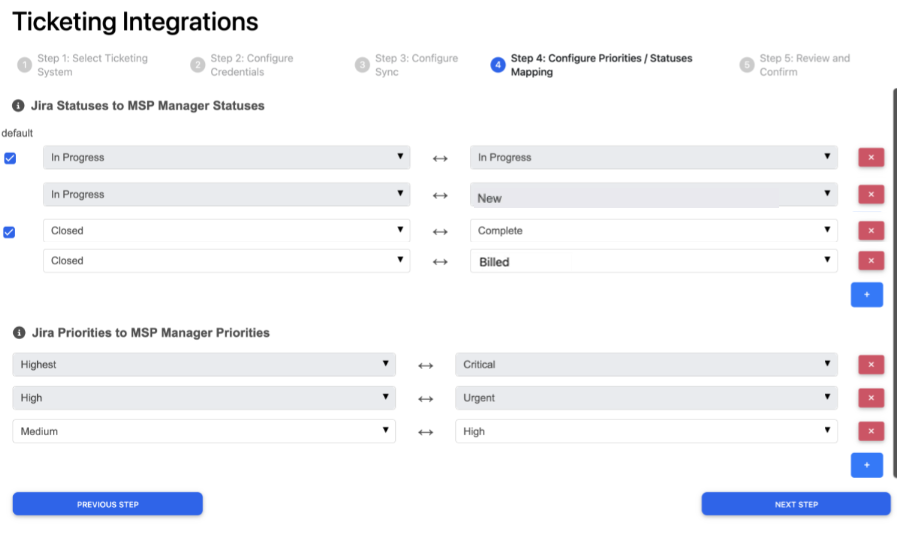
Review and confirm Adlumin integration settings
- Review your configuration details.
-
Select Confirm to complete the integration.
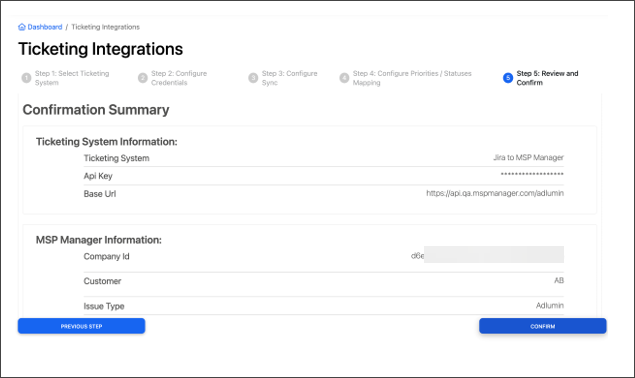
After the setup is complete, MSP Manager is connected to the Adlumin SOC for all newly generated tickets.
Reset the MSP Manager and Adlumin integration
If necessary, you can reset the MSP Manager and Adlumin integration.
Reset the configuration in Adlumin
- Sign in to Adlumin.
- Go to Tools > Ticketing integrations and select N-able MSP Manager.
- Select Reset Configuration.
- To confirm the reset, select OK. All progress with the integration will be lost.
Revoke your MSP Manager API Key for the integration with Adlumin
-
Sign in to MSP Manager.
-
Go to Settings > Company Settings > Integrations and select the Adlumin tile.
-
In the Active Keys list, find the key and select Revoke API Key in the Actions column.
- Select Confirm to revoke the API Key. The key moves to the Revoked Keys list.
You can also delete an API Key. Deleting an API key has the same effect as revoking it, but the key is no longer listed in MSP Manager.
Delete the MSP Manager webhooks configured for integration with Adlumin
- In MSP Manager, go to Settings > Company Settings > Integrations and select the Webhooks tile.
- Find the webhook enabled for your integration with Adlumin, then select the Actions menu and choose Delete.
- Select Delete to confirm the action.
Related topics